





 Elena sells kitchen gadgets on Amazon. Her silicone spatula set had been her best-seller for two years, pulling in $1,800 a day. Not glamorous. Just reliable. Then one Monday, she opened her dashboard and stared at something that made no sense. Sales for the entire weekend: zero.
She went through it in her head. Inventory: fine. Ads: running. She searched Amazon for her own product. Just… nothing.
Turned out it had been suppressed on Thursday evening. She had no idea until Monday morning, four days later. $7,200 at her daily rate. Gone. I’ve told this story a lot. I still haven’t gotten used to those two numbers sitting next to each other.
And the fix? Eleven minutes. Amazon had silently added a required attribute to her category. One field, left blank. Eleven minutes to fill it in. Thousands of dollars gone because nobody told her it happened.
That’s what makes an Amazon suppressed listing so brutal. It’s almost never hard to fix. The damage comes from not knowing.
This guide covers why suppression happens, how to find it in Seller Central, how to fix each type, and why the window between “it happened” and “you found out” is the only number that actually matters.
About the Author: Most of what’s in this guide, we learned by watching sellers lose money to suppression events they didn’t know about until days later. We track these across millions of listings daily at SellerSonar, so when we say the detection gap is the real problem, that’s not a theory. What you’ll find here comes from that data, not from recycled Amazon help pages.
What Is a Suppressed Listing on Amazon?
A suppressed Amazon listing is an active product page that Amazon has hidden from search results, the Buy Box, or both due to a content or compliance issue. The listing still exists in Seller Central — buyers just can’t find it or purchase it.
Here’s how it usually unfolds. You check your dashboard. Everything looks normal. Ads running, inventory stocked, account healthy. But then you search for your own product on Amazon and nothing comes up. No error. No flag. Just… not there.
That’s suppression. Removed from search results, the Buy Box, or both. Invisible to buyers until you fix whatever triggered it.
And this isn’t a ban. Amazon isn’t deciding you’re a bad seller. It’s more like getting bounced at a door: “listing doesn’t meet requirements right now, so we’re not showing it.” Fix the issue, you’re back in search. That’s the whole deal. Annoying as hell, yes. But at least it’s fixable.
Here’s how Amazon describes it in their own Seller Central documentation:
“Suppressed listings are product pages that don’t meet our listing quality requirements. These listings are still active in your inventory, but they won’t appear in search results until the required information is added or corrected.”
— Amazon Seller Central Help
Two Types of Suppression
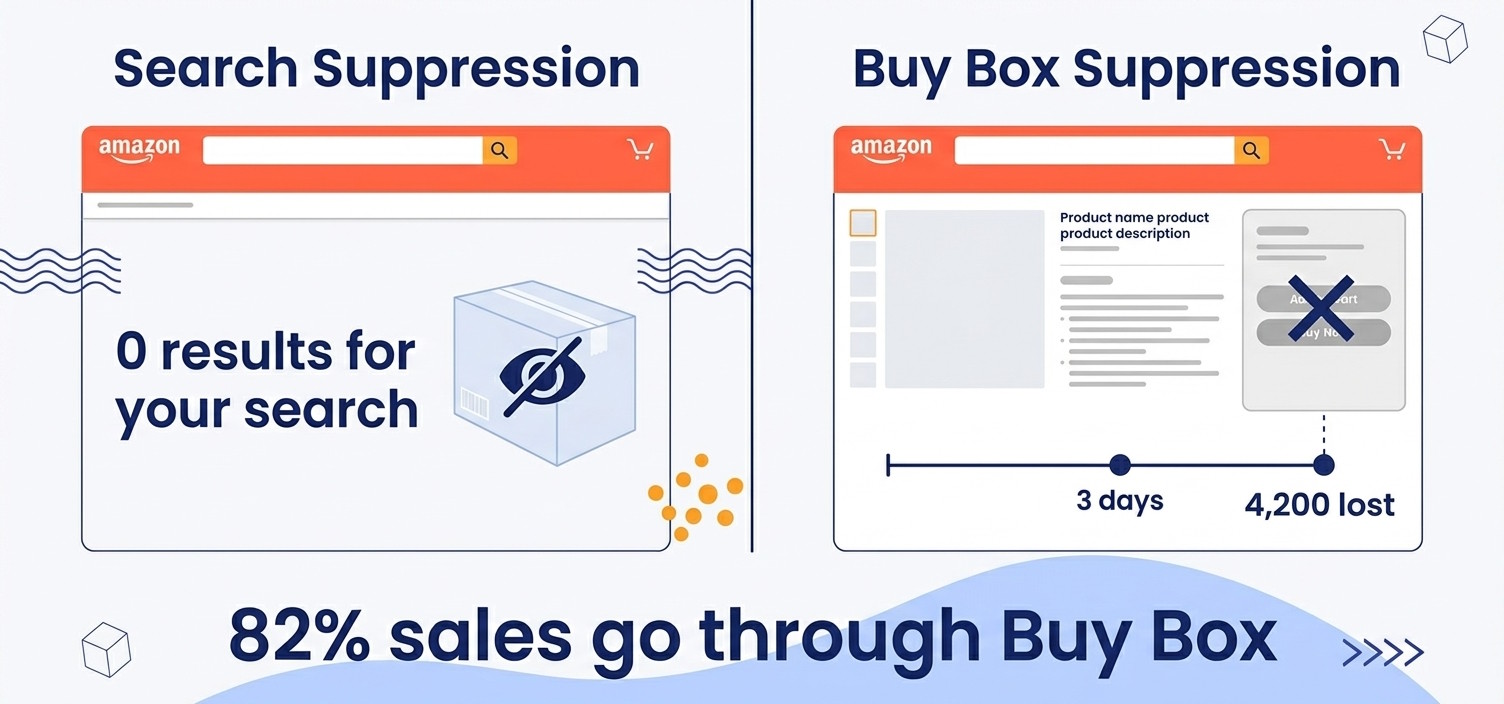
Search suppression is the worst one. Full disappearance. You can type your own product’s name into Amazon’s search bar and come up empty. The listing still lives in Seller Central, but buyers can’t see it. Doesn’t exist, from where they’re standing.
Buy Box suppression is sneakier and easier to miss. Your listing still shows up in search. But the “Add to Cart” button is just gone. Someone finds your product, clicks through, and there’s nothing to click. They’re sitting on your product page with no way to buy. And since 82% of Amazon sales happen through the Buy Box, “sneakier” doesn’t mean less damaging.
Suppressed vs. Stranded Inventory
Sellers mix these up all the time. They’re not the same, and fixing one does nothing for the other.
| Suppressed | Stranded | |
|---|---|---|
| What it means | Listing hidden from buyers due to content/compliance issue | FBA inventory in warehouse with no active listing attached |
| Listing exists? | Yes, active but invisible | No active listing |
| Customers can buy? | No | No |
| Where to find it | Inventory > Manage Inventory > Suppressed tab | Inventory > Manage FBA Inventory > Stranded tab |
| Fix | Correct the content issue Amazon flagged | Reconnect or create a listing for the inventory |
Both show up in your Seller Central dashboard. Both cost you sales. The fixes are completely different, so make sure you’re solving the right problem.
How to Find Your Suppressed Listings in Seller Central
Most sellers only come looking here after they notice their Amazon listing not showing in search. Here’s where to go:
- Log in to Seller Central
- Go to Inventory in the top navigation
- Click Manage Inventory
- In the filter tabs at the top, click Activate Listings -> Suppressed

Whatever’s in there is your problem list. Amazon gives you a suppression reason for each one. Usually, that’s enough to act on. Sometimes it’s maddeningly vague. (I’ll get to that in a second.)
More than a handful of ASINs? Use Download Report in the top right corner. Way faster than clicking into each one individually.
💡 Expert Tip: The vague ones will drive you crazy. “Missing required attributes” is the worst offender; it flags a problem without naming it. When you hit that, don’t stop at the summary view. Click into the individual listing and dig into the field-level errors. Weirdly, they’re almost always more specific than the error that sent you there in the first place.
One limitation that matters a lot: the Suppressed tab only shows what’s suppressed right now. There’s no history. Fix a suppressed listing, and it vanishes from this view like it never happened, no record, no log, nothing. Amazon also doesn’t notify you when suppression occurs. No email, no dashboard alert. You have to come looking. More on why that’s such a problem in a moment.
The 6 Most Common Causes of Amazon Listing Suppression
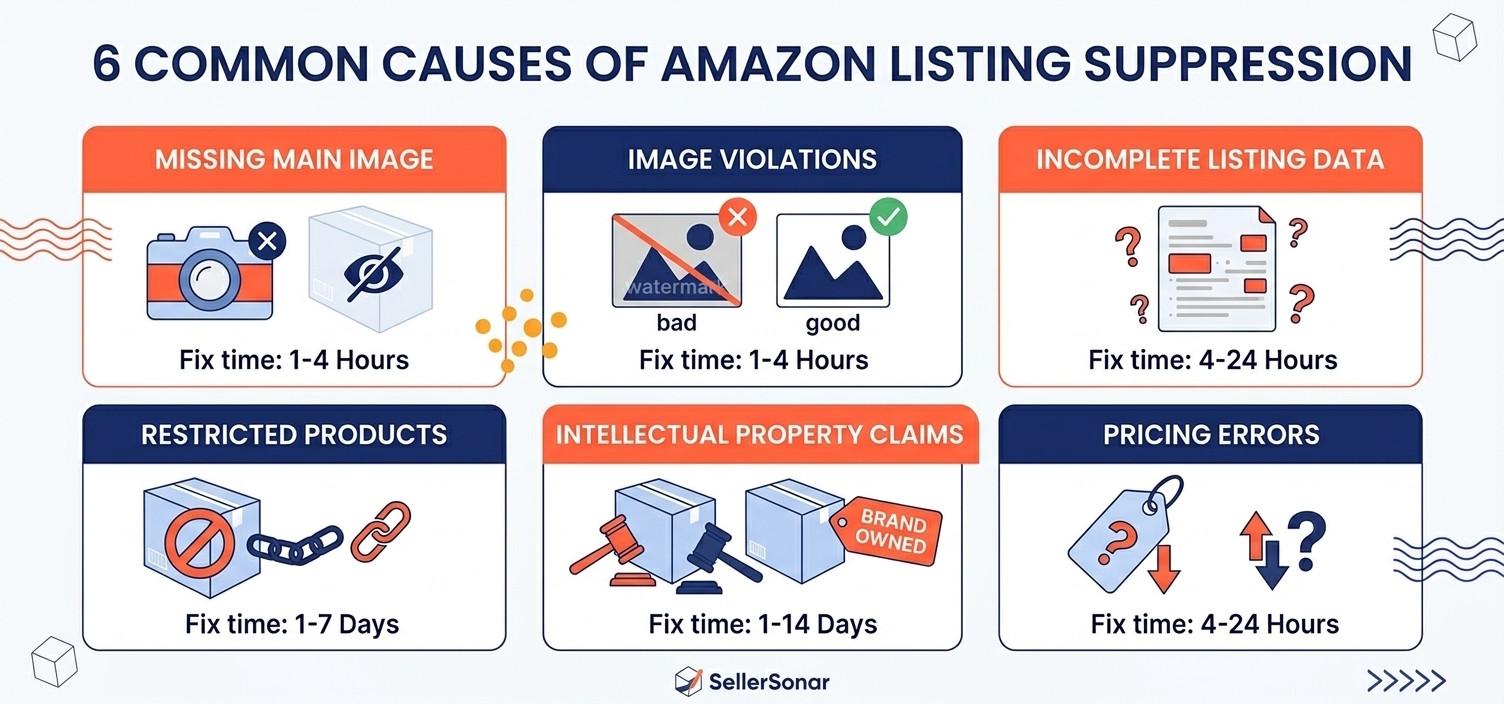
These six causes cover the vast majority of suppressions we see across the listings SellerSonar monitors. Know them, and the suppressed listing fix is almost always straightforward; it’s not knowing you’re suppressed that costs you.
| Cause | Common Trigger | Typical Fix Time |
|---|---|---|
| Missing required attributes | Amazon adds new field to your category | 5–15 min |
| Main image violation | Non-white background, watermark, or size issue | 15–30 min |
| Title or text violation | ALL CAPS, promo language, character limit exceeded | 10–20 min |
| Pricing anomaly | Price too high or too low vs. category norms | 5–10 min |
| Safety or compliance issue | Missing certification or documentation | 1–14 days |
| Category-specific requirements | Nutrition info, ingredient list, material spec missing | 5–20 min |
1. Missing Required Attributes
This one’s particularly frustrating because you didn’t do anything wrong. Nothing changed on your end.
Amazon periodically adds required fields to product categories, without telling you. Ever. Listings that were fully compliant last month can wake up suppressed because Amazon quietly added “country of origin” or “material type” or “battery information” as a mandatory field sometime last week. No announcement. No email. You just stop showing up in search.
According to Amazon’s 2025 Brand Protection Report, Amazon identified and removed over 15 million counterfeit products worldwide — the same quality engine that flags infringements also silently suppresses your listings for missing required data.
Product dimensions, material type, country of origin, age range for children’s products. Those are the common ones. In some categories, the requirements have gotten granular: fabric care instructions, compatibility details, hazardous materials classification.
To fix it: open the suppressed listing, click Edit, find the field Amazon flagged, fill it in. Save. Then wait 24–48 hours for re-evaluation. Usually, that’s all it takes.
Watch this if the suppressed listing is part of a variation family and the error looks broader than one missing field.
2. Main Image Violations
The image requirements are brutal, and this is where I see sellers get caught off guard most often. “White background” sounds simple enough. It means RGB 255, 255, 255. Exactly that. Off-white gets flagged. Light gray gets flagged. “Close enough” gets your listing suppressed.
The most common violations:
- Background is not pure white (RGB 255, 255, 255)
- Text, logos, or watermarks on the main image
- Product doesn’t fill at least 85% of the frame
- Image is under 1,000 pixels on the longest side
- Multiple products shown when only one is being sold
Swap the image for one that genuinely meets spec. Amazon’s image requirements documentation is worth at least a skim before you reshoot; the edge case list is longer than you’d expect.
3. Title, Bullet Point, or Description Violations
The text rules trip up more sellers than you’d expect. A few that come up constantly:
- Title exceeding character limits (varies by category, typically 200 characters)
- ALL CAPS in titles (except standard abbreviations)
- Promotional language in titles (“Best Seller,” “Free Shipping,” “#1”)
- Phone numbers, URLs, or promotional text in bullets or description
The sneakiest one: character limits vary by category. So if you copied a title structure from a different category, you might be over the limit without even knowing it. Either way, the field-level error in your listing edit view is more specific than the summary tab; that’s where you’ll find the actual problem.
4. Pricing Anomalies
Amazon suppresses listings when the price looks wrong. Either suspiciously low (which reads as a pricing error) or well above what the algorithm considers reasonable for that product type.
The frustrating version of this (and I’d say it’s more common than people admit): your repricing tool runs overnight, a rule fires incorrectly, and your $40 product ends up listed at $0.01 or $400. Amazon suppresses it before you notice. By morning you’re down a day of revenue and confused about why.
If this happens: set a sensible price manually, save it, and the listing usually recovers within a few hours. While you’re in there, audit your repricing rules; whatever caused the bad price will cause it again.
5. Safety or Compliance Issues
OK, this one is genuinely different from the others. It’s not a missing field or a bad image. It’s Amazon saying “we need documentation before this product can be listed.”
It comes up most often with:
- Children’s toys and products (CPSC compliance)
- Electronics (FCC certifications)
- Food and dietary supplements (FDA compliance)
- Pesticides and cleaning products (EPA registration)
- Medical devices
Amazon will generally tell you what they need, which is at least something. Submit through the case management system, then wait. And I mean actually wait. Unlike the other suppression types where you’re looking at 24–48 hours for an algorithm to re-evaluate, compliance reviews involve a real person. Plan for 1–2 weeks. Sometimes more.
If you sell in these categories and run into this repeatedly, Amazon Brand Registry gives you access to dedicated support channels that move faster.
6. Category-Specific Requirements
On top of the standard listing requirements, certain categories have their own rules. Grocery needs nutrition info. Beauty often needs ingredient lists. Jewelry requires material specifications. Some home goods categories need safety certifications.
If you’ve been selling in the same category for years without issues and suddenly get suppressed, this is often why. Amazon updated the requirements at some point, your listing didn’t meet them, and it quietly disappeared. You didn’t change anything. The goalposts moved.
🎯 Pro Insight: The version of this that gets me every time: a listing that’s been active for two years suddenly gets suppressed because Amazon added a new required field to that category last Tuesday. No announcement, no email, nothing. It just disappears from search. We see this constantly in the listings SellerSonar monitors. The seller finds out when their sales drop, sometimes days later, not when it actually happened.
How to Fix a Suppressed Amazon Listing
Here’s the thing: no matter what triggered the suppression, the fix process is basically the same. Work through these in order.
Time Needed : 30 minutes
- Find the suppressed listing in Seller Central
Go to Seller Central → Inventory → Manage Inventory → Suppressed tab. If you have a large catalog, download the spreadsheet report - it shows every suppressed ASIN with the suppression reason in one view.
- Read the specific error message
Click into the listing and open Edit Listing view. The field-level error there is more specific than the summary shown in the Suppressed tab. Amazon almost always tells you exactly what needs to be fixed — don't guess.
- Fix the root cause, not the symptom
Make the specific change Amazon is requesting. Fix one thing at a time — if you change multiple fields and the listing recovers, you won't know which fix actually worked.
- Save and wait for re-evaluation
Save your changes. Amazon typically re-evaluates within 24–48 hours. For compliance-related suppression (FDA, FCC, safety certifications) allow up to two weeks — these require human review, not just an algorithm pass.
- Open a Seller Support case if still suppressed after 48 hours
If the listing remains suppressed 48 hours after your fix, open a case. Include the ASIN, suppression date, list of changes made, and screenshots of both the original error and your fix. Specific cases with evidence are resolved faster than vague requests.
Running into a suppressed listing for compliance reasons? Brand registry enrollment can give you access to dedicated support channels with faster response times.
Want to know the moment a listing gets suppressed, instead of days later? SellerSonar’s suppression alerts send you an instant notification when any ASIN loses visibility, so you can fix it before the revenue loss adds up.
How Much Does a Suppressed Listing Actually Cost You?
Most articles on this topic skip the math. Let’s actually do it.
Product doing 40 units a day at $35 each. That’s $1,400 in daily revenue. Listing gets suppressed Friday evening. You notice Monday morning. Three days.
$4,200. Gone. You won’t recover it. Not a cent.
And here’s the compounding part: Jungle Scout’s 2025 State of the Amazon Seller report — based on a survey of nearly 1,500 Amazon sellers — found that operational overhead and inventory management rank among sellers’ biggest ongoing challenges. The problem: most of that work happens during scheduled reviews, not real-time. Suppression events that land outside those review windows go unnoticed until the next audit.
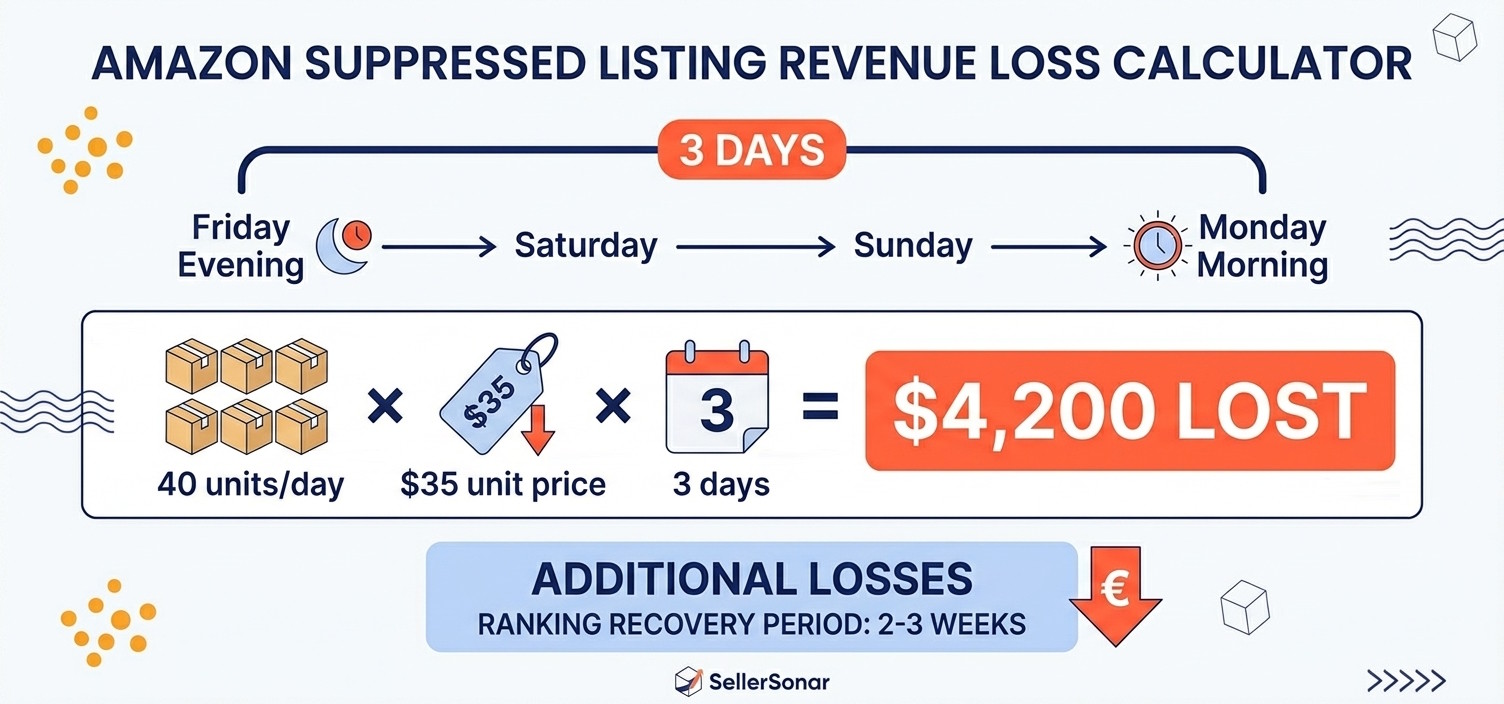
But that’s actually the simple version of the damage. Here’s the part people miss: while your listing is suppressed, your sales velocity drops. Amazon’s ranking algorithm weights recent velocity heavily. So when you come back, you may rank lower than before the suppression, costing you organic revenue for weeks after the listing is live again.
The financial hit doesn’t stop when the listing goes back up.
For agencies running 50+ ASINs, this compounds fast. James manages an agency in Chicago, 14 brand accounts. In early 2025, one client’s top ASIN (a private label supplement doing $3,200 a day) was suppressed for 11 days before his team caught it during a routine review.
The cause was a missing dosage attribute. The fix took 8 minutes. Eight.
The 11-day gap cost the client over $35,000. It nearly ended the contract. And the only reason it lasted 11 days is that nobody had a system in place to catch it sooner. Just periodic manual checks that happened to miss it three weeks running.
That’s the whole problem, right there.
How to Stop Missing Suppressed Listings Before They Cost You
Here’s what manual listing monitoring actually looks like, once you’re honest about it.
You open Seller Central, navigate to the Suppressed tab, scan what’s there. For 10 ASINs, that’s a two-minute task every few days. Fine. For 100 ASINs across a few accounts, you’re looking at a real chunk of your morning, every single day, indefinitely, just to keep up. For 500 ASINs? Let’s be real: you’re not doing it. You’re doing it when you remember, which means you’re finding problems three days after they happened, minimum.
Scale kills manual. Every time.
The only way around this is monitoring that runs continuously without you: something checking every listing every hour and flagging each suppressed listing the moment it happens. SellerSonar’s listing monitoring does exactly that: immediate alert before you’ve had a chance to notice the drop in sales.
What that looks like in practice: a seller gets a suppression alert at 6:47 AM on a Saturday. She sees it on her phone before breakfast (probably would’ve ignored it on a weekday, honestly, but Saturday mornings are slower). By 7:15 AM the missing attribute is filled in. By Sunday evening the listing is back in search. Total revenue lost: a few hours.
Without the alert? She finds out Monday. Same fix. Very different number.
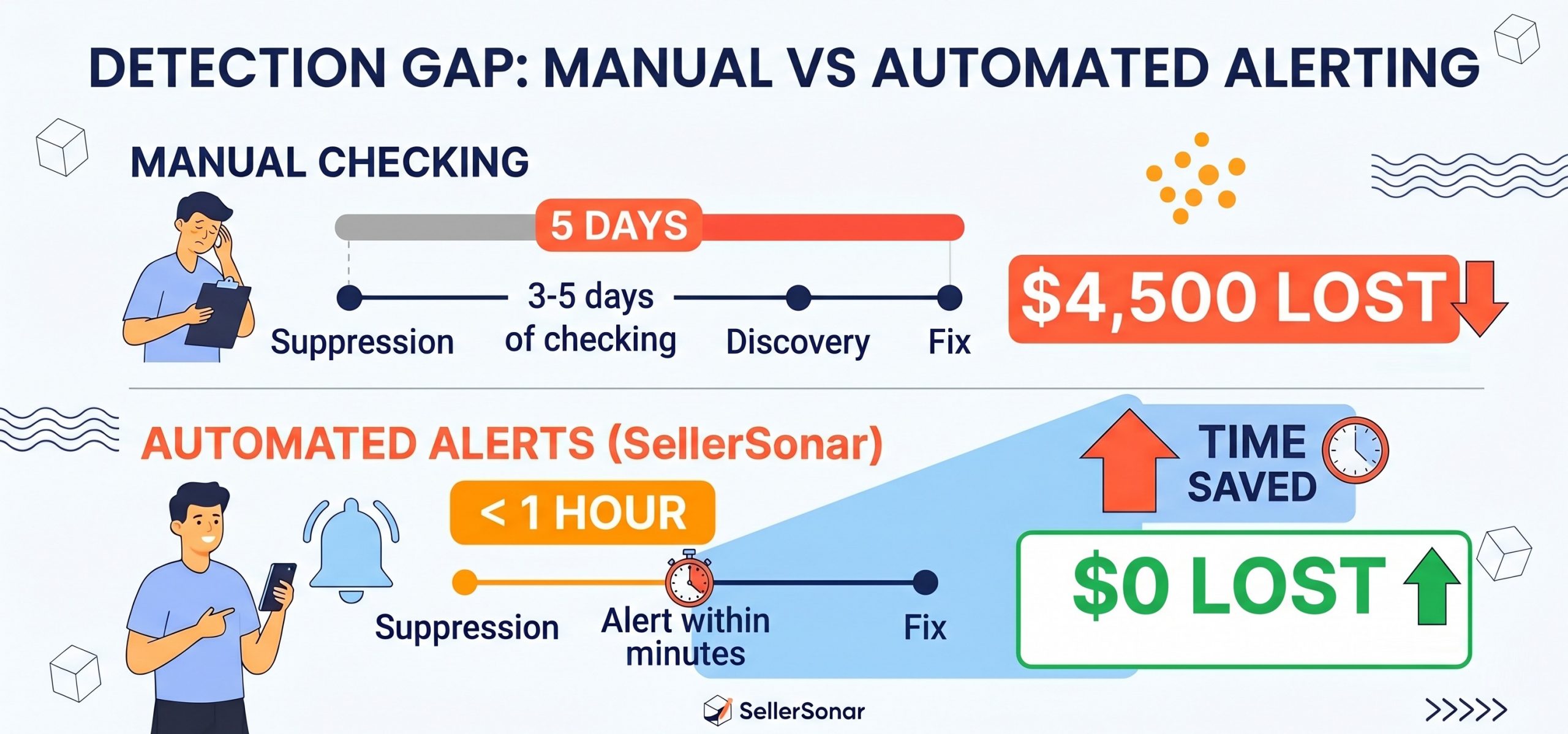
📌 From Our Experience: From what we see daily at SellerSonar, the average seller who catches a suppression via manual checking discovers it 3-5 days after it happened. Sellers using automated alerts catch it within 1 hour. For a listing doing $1,000 a day, that’s the difference between losing $0 and losing $4,500. The monitoring cost is a rounding error compared to that math.
And suppression is only one thing Amazon can do to your listing without warning. Broader retail issues alerts cover the full picture: same core problem as listing hijacking, same pattern. The event hurts, but the delay is what actually kills you.
Bottom Line
An Amazon suppressed listing will almost always be fixable in under 30 minutes. That’s not the hard part.
The hard part is the gap. Between when Amazon suppressed your listing and when you found out. That’s where the money goes.
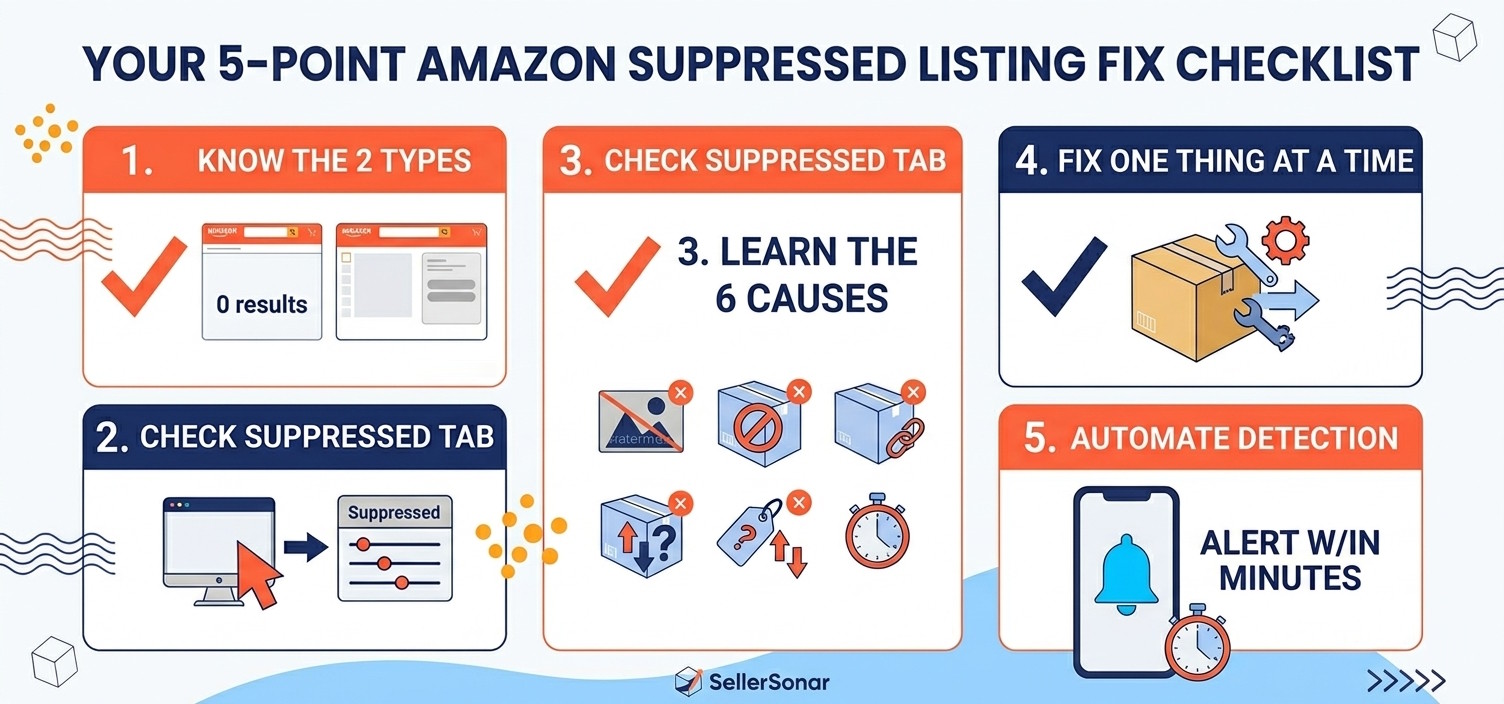
Five things to hold onto from this guide:
- There are two types, and they’re not the same. Search suppression hides your listing completely. Buy Box suppression lets people find you but not buy. Both cost money; only one shows up as zero traffic.
- The Suppressed tab is where you look. Seller Central > Inventory > Manage Inventory. Download the spreadsheet version if you’ve got a big catalog.
- Six causes, and Amazon usually tells you which one. Missing attributes, image problems, text violations, pricing anomalies, compliance gaps, or category-specific requirements. Read the actual error, not just the summary.
- Fix one thing at a time. Seriously. If you change three things and the listing recovers, you’ll never know what actually fixed it.
- The fix isn’t what’s killing you. The delay is. Worth writing down.
Final Expert Recommendations:
One thing we see consistently with sellers managing 50+ ASINs: the ones who lose the most money to suppression aren’t the ones with complicated listings or unusual compliance situations. They’re the ones who find out 3–5 days late because they were checking the Suppressed tab “when they remembered.”
Start there. Open the Suppressed tab right now and see what’s in it; you might already have something hiding.
Then build a system. A daily reminder works for small catalogs. For anything larger, you want automated monitoring; SellerSonar checks every hour and alerts you the moment something changes. The goal either way: know within minutes, not days.
For a catalog where one suppressed ASIN costs you $1,000+ a day, this isn’t optional.
Ready to catch it in hours instead of days? Start a free 14-day trial (no credit card required).

