




Review alerts tell you when something changes in the reviews on your tracked listings: a new negative review, a negative review that keeps gaining helpful votes, a new Top review on the listing page, a change in the star rating, or a new phrase that customers keep repeating. They are part of SellerSonar’s review monitoring. This page explains all 9 review alert types, what triggers each one, and how often it can fire.
Most review alerts depend on the SellerSonar Chrome extension, which collects reviews from your own browser. These alerts can only fire when a collection runs, so we recommend collecting reviews every 1-3 days. Two alerts (Rating changed and New Top phrase appeared) are updated every 3-4 hours.
Quick start
You need:
- A SellerSonar account. The Reviews page, review tracking and review alerts are included in every plan.
- Products added to SellerSonar. Reviews are collected for every product in your account.
- An Amazon buyer or business account. This is your shopping account, not Seller Central.
Then:
- Install the SellerSonar Chrome extension from the Chrome Web Store and sign in to your SellerSonar account. The extension icon is in the top-right corner of Chrome; if you don’t see it, click the puzzle icon.
- In the same Chrome browser, log in to your Amazon buyer or business account and open every marketplace you track. The extension’s Open all marketplaces button does this in one click.
- Keep the tabs open while the extension collects reviews.
- In Alerts → Delivery Settings, check that the review alerts you want are switched on and choose where they go.
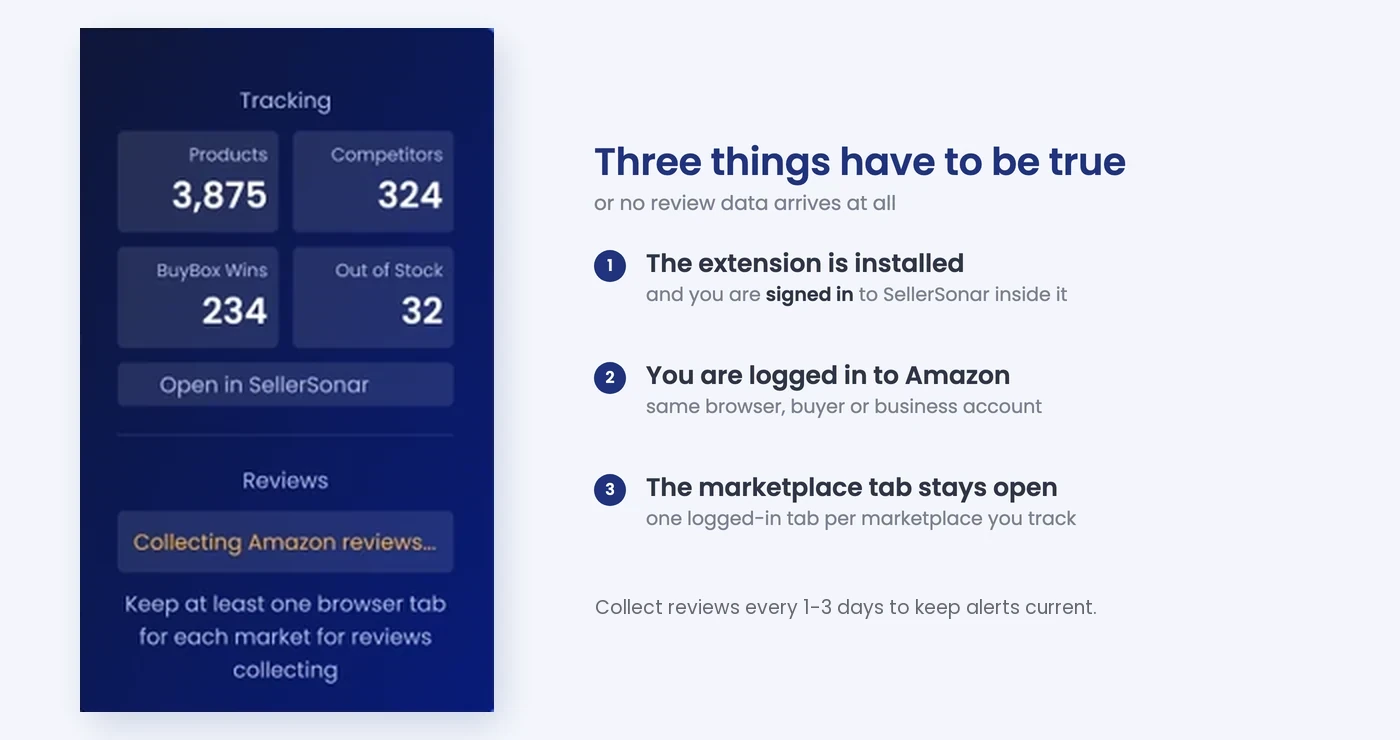
You’re set up when the checklist at the top of the Reviews page shows a green check for the extension, counts all your marketplaces as opened and logged in (for example, 7/7), and shows a recent Last update date for each one.
If the extension isn’t signed in, no Amazon account is logged in, or the marketplace tab is closed, no review data arrives and review alerts can’t fire.
Collect reviews with the extension
The extension collects reviews while a marketplace tab is open and logged in to Amazon. The Reviews page shows how collection is going.
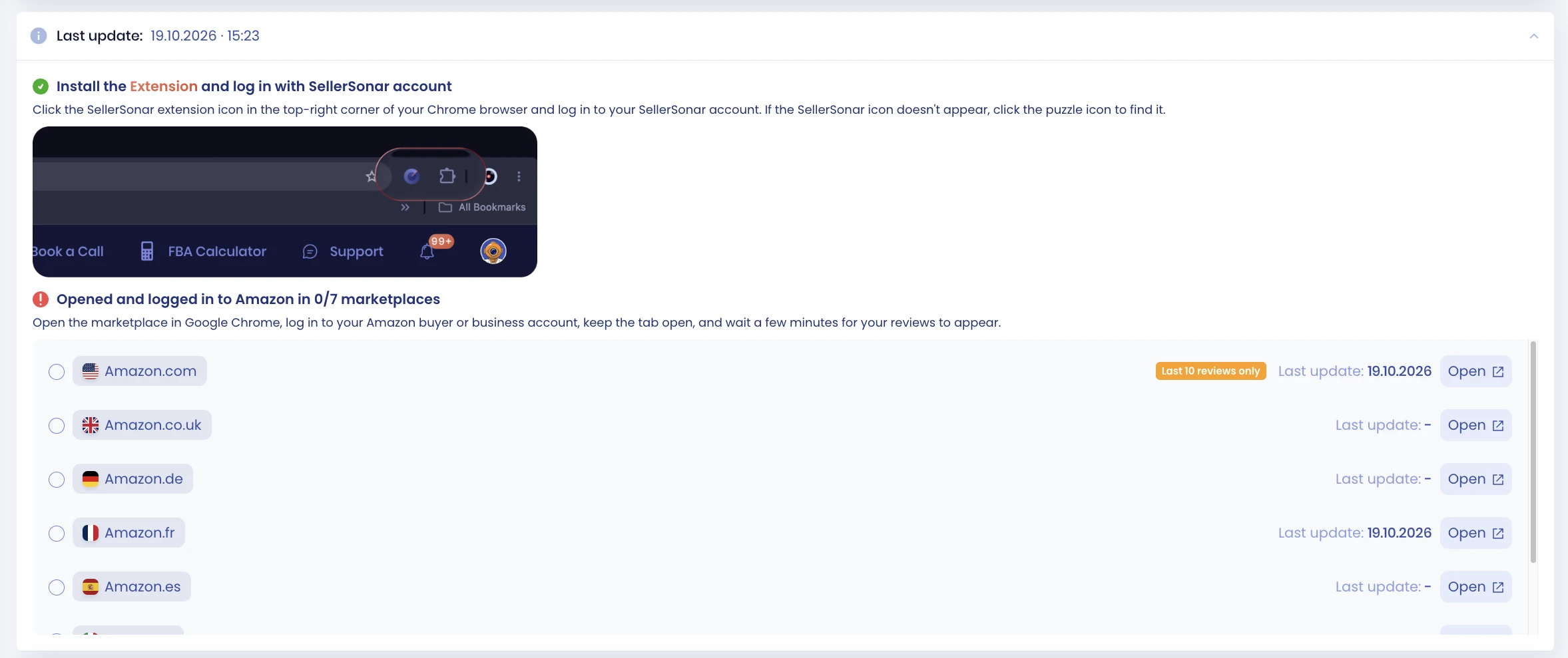
The checklist at the top of the Reviews section shows both steps: whether the extension is signed in, and how many of your marketplaces are open and logged in to Amazon, with the last update date for each one.
What the checklist shows
| You see | What it means | What to do |
|---|---|---|
| Green check next to Install the Extension and log in | The extension is installed and signed in to SellerSonar | Nothing |
| Red mark next to Opened and logged in to Amazon, for example 0/7 marketplaces | No marketplace tab is open and logged in right now | Open the marketplaces, log in to Amazon, and keep the tabs open |
| Last update with a date | The date of the latest collection in that marketplace | If it’s more than 3 days old, open that marketplace again |
| Last update: – | No reviews have been collected in that marketplace yet | Click Open next to it and log in to Amazon |
| Last 10 reviews only | Amazon shows this Amazon account only 10 reviews per product | Log in with a different Amazon account, or ask Amazon to show more reviews |
Collection runs per marketplace. If you track products in several marketplaces, open and log in to each of them in its own tab. The extension panel can do this for you: click Open all marketplaces to open every connected marketplace at once, then check the login status and progress shown for each one. Closing a tab stops the collection for that marketplace.
Repeat the collection every 1-3 days. The more often you collect, the sooner new reviews (and the alerts that come with them) show up.
Choose which alerts you get
- In SellerSonar, open Alerts → Delivery Settings.
- Expand the Reviews group.
- Switch individual alert types on or off, so you only get the notifications you care about.
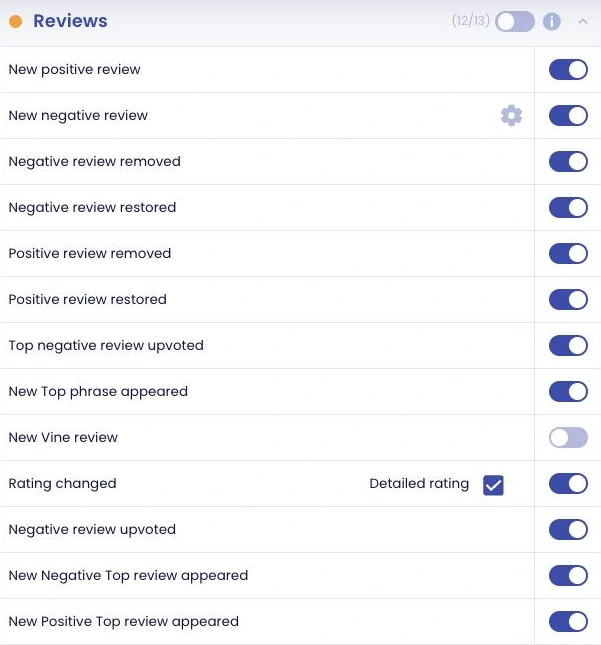
The Reviews group also lists four switches (Negative review removed, Negative review restored, Positive review removed and Positive review restored) that this page doesn’t cover yet; contact support before you rely on them.
Each delivery setup has its own product group, channels, schedule, and alert switches:
- Group: choose All products or one of your product groups. The alert switches on the right apply to the group you choose. Click Add Setup to create another setup, for example to send one product group’s alerts to a different person.
- Channels: use Add Email, Add Slack, or Add Webhook. Which channels you can use depends on your plan.
- Send every: Immediately, Day, Week, or Off. For a daily or weekly digest, set the time and your time zone.
- Export file: tick the CSV box to attach a CSV or XLSX file with all alerts from that period to the email.
Click Save to apply your changes.
Turning an alert off doesn’t stop review collection. Reviews are collected for all products in your account, and individual products can’t be excluded.
Review alerts at a glance
Seven alerts are generated when the extension collects reviews, so how soon you see them depends on how often you collect. Rating changed and New Top phrase appeared are checked every 3-4 hours. Once an alert is generated, your delivery settings decide when it reaches you: right away, or in a digest at the time you choose.
| Alert | Trigger | When it’s checked |
|---|---|---|
| New positive review | New positive review detected | After each collection |
| New negative review | New negative review detected (1-3 stars by default) | After each collection |
| New Vine review | New Vine review detected (Brand Registry only); shown with a Vine tag in Reviews | After each collection |
| Negative review upvoted | A negative review gained helpful votes | After each collection |
| Top negative review upvoted | A featured negative Top review gained votes | After each collection |
| New Negative Top review appeared | New negative review featured on the listing page | After each collection |
| New Positive Top review appeared | New positive review featured on the listing page | After each collection |
| Rating changed | Star rating changed | Every 3-4 hours |
| New Top phrase appeared | New recurring phrase found in reviews | Every 3-4 hours |
New reviews
Three alerts tell you about reviews that weren’t there at your last collection. All three are generated while reviews are being collected through the extension, so how quickly you see them depends on how often you collect.
New positive review. Sent when a new positive review is detected on a tracked listing.
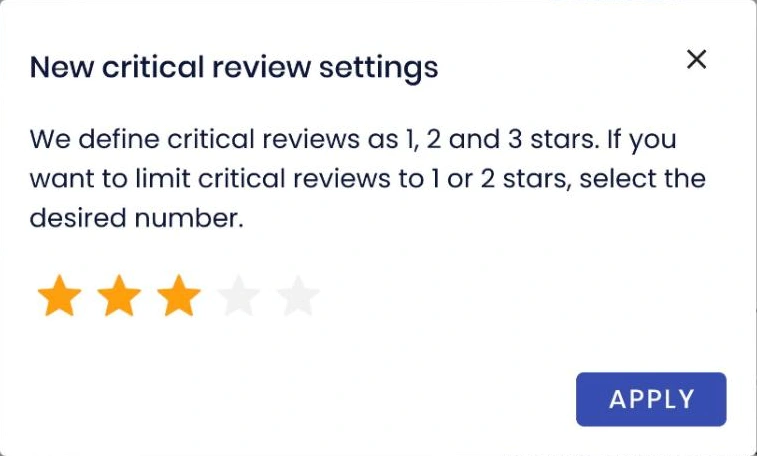
New negative review. Sent when a new negative review is detected on a tracked listing. By default, SellerSonar counts 1-, 2-, and 3-star reviews as negative. To count only 1-star or only 1- and 2-star reviews, open Alerts → Delivery Settings, click the gear icon next to New negative review, choose the star level, and click Apply.
New Vine review. Sent when a new review from the Amazon Vine program is detected. Vine is available only to brands enrolled in Amazon Brand Registry. The review also appears in the Reviews section with a Vine tag, so it’s easy to tell apart from regular reviews.
Votes on negative reviews
These two alerts track helpful votes on negative reviews, so you can see which complaints other shoppers agree with.
Negative review upvoted. Sent when a negative review receives more helpful votes. A review that keeps gaining votes may eventually become a Top review, which Amazon shows directly on the listing page, so treat this alert as an early warning.
Top negative review upvoted. Sent when a negative review that is already featured as a Top review receives more votes. The alert shows the vote count before and after.
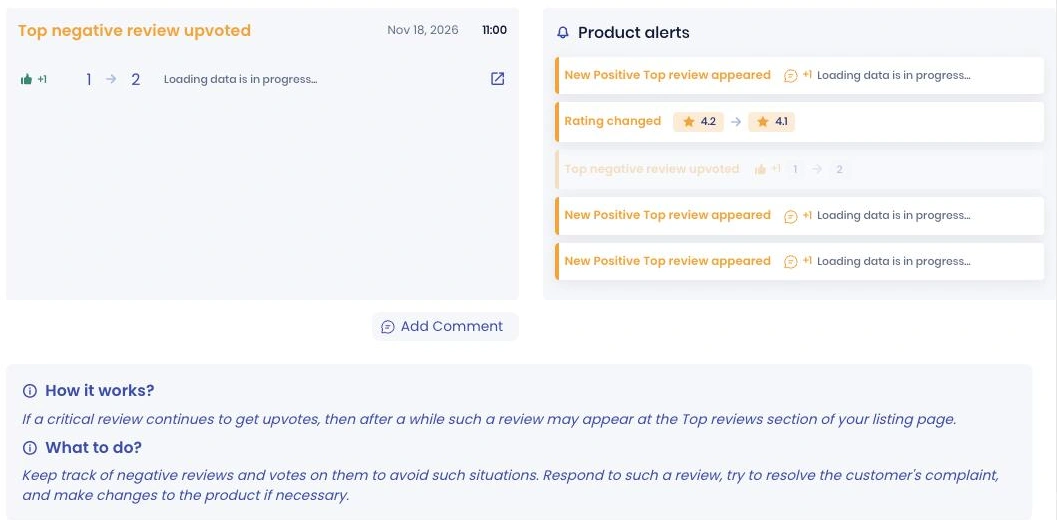
The alert details also list the product’s other recent alerts and explain what the alert means and what to do next. Use Add Comment to leave a note for your team, or Create Trello task to turn the alert into a task.
Top reviews on the listing page
Top reviews are the reviews Amazon features on the main listing page. Shoppers see them first, so changes here have the most direct effect on conversion.
New Negative Top review appeared. Sent when a new negative review appears among the Top reviews on the listing page.
New Positive Top review appeared. Sent when a new positive review appears among the Top reviews on the listing page.
Rating and insights
These two alerts are updated every 3-4 hours.
Rating changed. Sent when the listing’s star rating changes. The alert shows the old and new rating, for example 4.4 → 4.5.
New Top phrase appeared. SellerSonar analyzes your reviews and tracks the phrases customers keep repeating. When a new recurring phrase is detected, you receive this alert, so you can spot an emerging theme (a new complaint or a newly praised feature, for example) before it becomes a pattern.
Together with the upvoted negative review alerts, this helps you find your customers’ top concerns early.
What to do when you get a review alert
An alert is most useful when it leads to an action. Here is a starting point for each type.
| Alert | What to do |
|---|---|
| New negative review | Read it the same day. If it describes a real problem (damage, missing parts, a wrong size), fix the cause in the product, packaging, or listing. If it breaks Amazon’s Community Guidelines, for example it’s only about shipping or the seller, report it. |
| Negative review upvoted | Shoppers agree with this complaint. Answer it in your listing (bullet points, images, or size details) before the review becomes a Top review. |
| Top negative review upvoted | The complaint is already among the first reviews shoppers see and is gaining support. Fix the cause first; if the review breaks the guidelines, report it now. |
| New Negative Top review appeared | Treat it as urgent: it’s now one of the first reviews on your listing page. Check whether other recent reviews repeat the same issue. |
| Rating changed | Open the Reviews page, filter by the product and the last few days, and find the reviews that moved the rating. |
| New Top phrase appeared | Open the product’s Product reviews panel to see how often the phrase comes up. A new complaint that keeps repeating usually points to one fix. |
| New positive review, New Positive Top review appeared, New Vine review | Note what customers praise or criticize and use it in your listing copy and images. Vine reviews arrive early, so read them before you scale ads or inventory. |
To report a review, use the Report link under the review on the product page, or Report Abuse in Seller Central for suspected competitor attacks. Don’t contact the buyer to ask them to change or remove a review: Amazon doesn’t allow it. Our guide on how to remove an Amazon review explains which reviews Amazon takes down.
Where to see review alerts
Every review alert appears on the Alerts page in SellerSonar. To see only review alerts, open the Alerts Type filter, type “review” or an alert name in its search box, tick the alert types you want, and click Apply. To skip these steps, open the Alerts page filtered to all 9 review alert types.
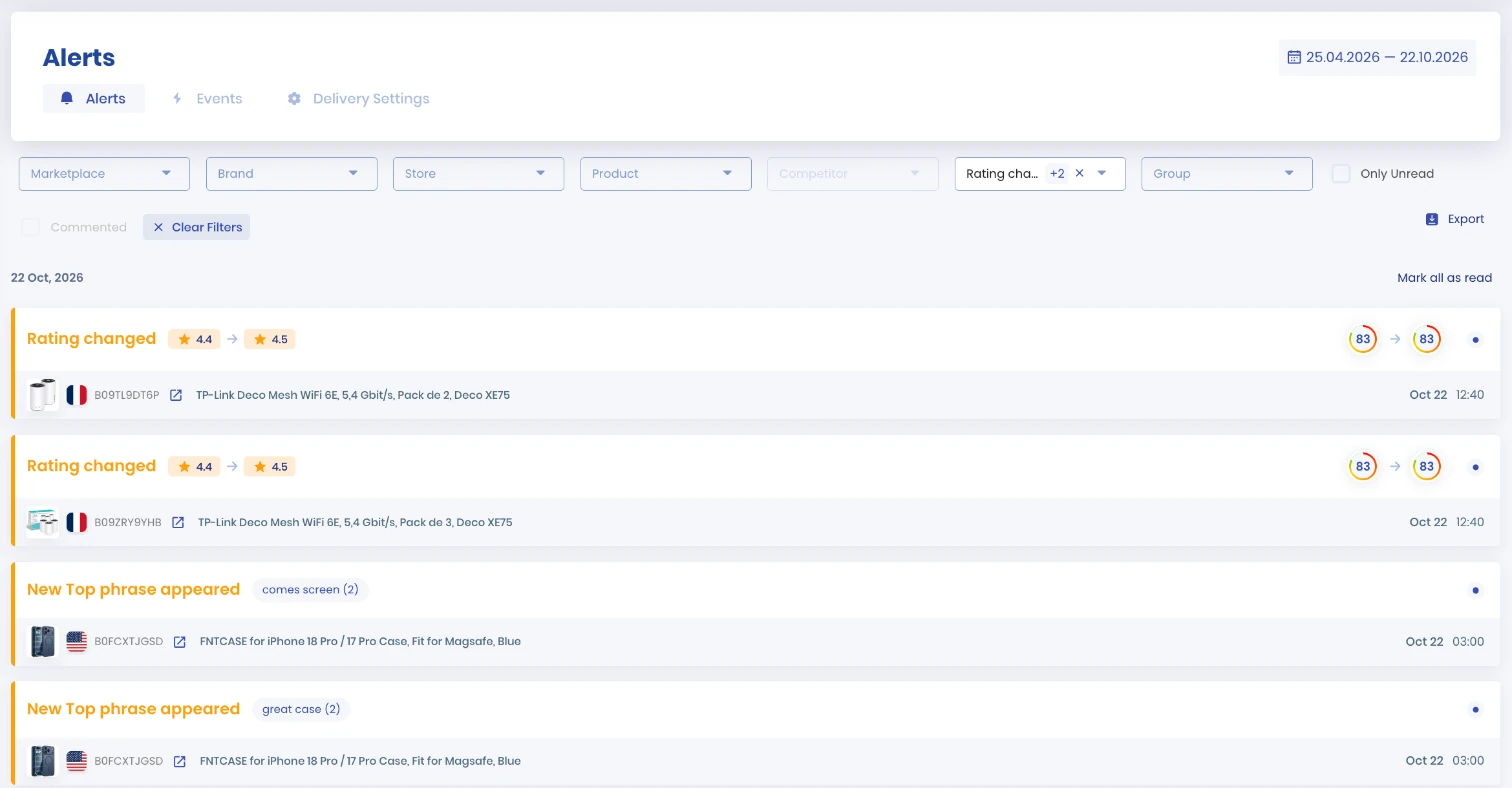
Each alert shows the product, its ASIN and marketplace, and what changed: the old and new star rating for Rating changed, or the new phrase and its count for New Top phrase appeared. Click an alert to open its details. Alerts are also sent to the email, Slack, or webhook destinations in your delivery settings.
To keep track of what you’ve already handled:
- Tick Only Unread to hide the alerts you’ve seen, or click Mark all as read.
- Open an alert and click Add Comment to note what you did. Tick Commented to find the alerts that have notes.
- Click Create Trello task in an alert to hand it to your team.
Filter and export reviews
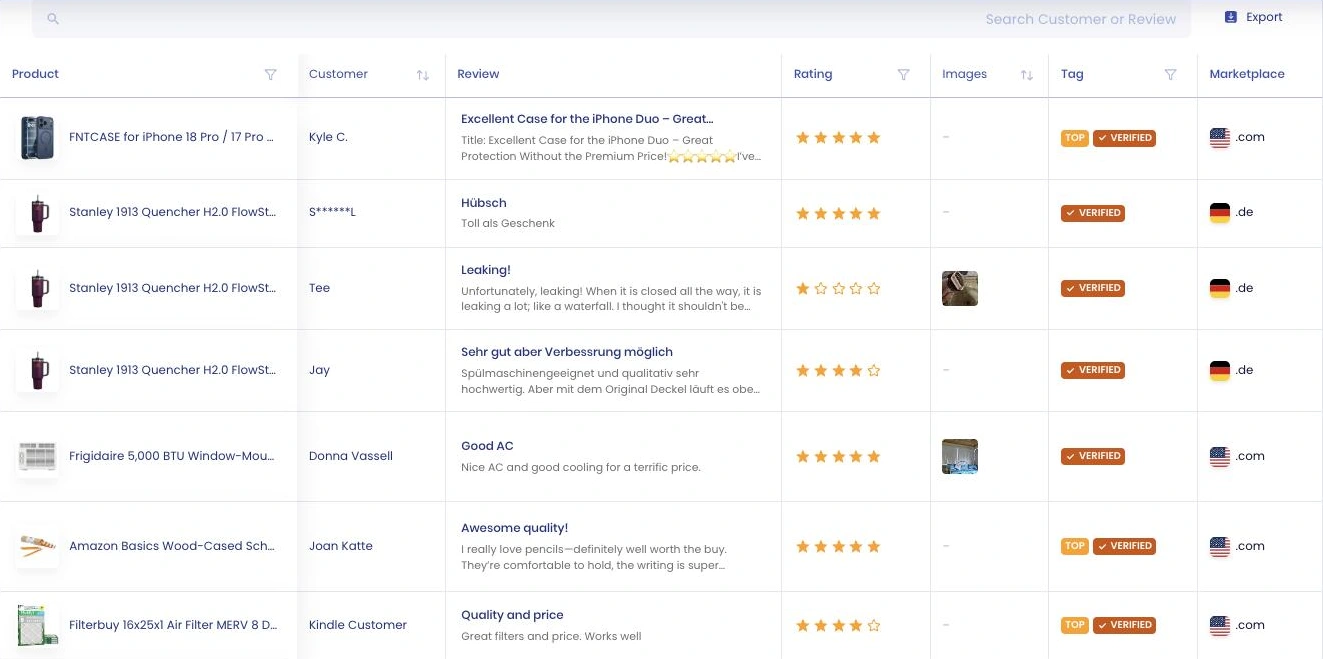
The Reviews section lists every collected review in one table, with a search box for customer names and review text. Use the filter icon in a column header to narrow the list. You can filter reviews by:
- Marketplace, product, brand, and store
- Rating and date
- Presence of images
- Verified or unverified purchase
- Customer and customer gender
Positive and negative reviews, Top reviews from the listing page, and Vine reviews (marked with a Vine tag) are all available for analysis. You can also export all collected reviews and analyze them with AI or any other tool you like.
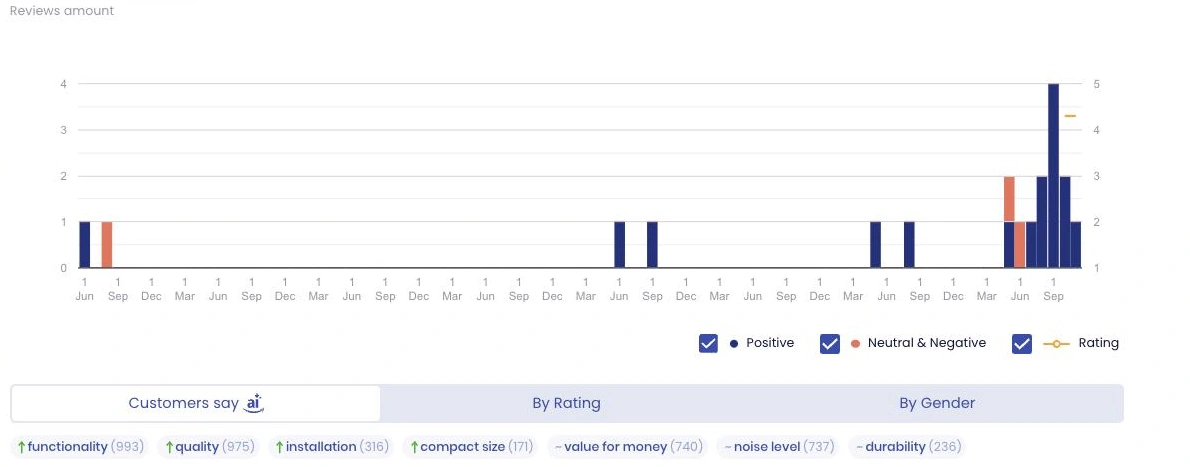
To see one product’s reviews over time, click the small icon next to its Customers say phrases. The Product reviews panel shows a chart of positive and negative reviews with the rating line, and the phrases customers repeat, which you can also view By Rating and By Gender.
Click Export above the table to download the reviews as CSV or XLSX. The file has the ASIN, marketplace, brand, rating, status, review text, customer name, date and a link to the review; images aren’t included.
Limits
- Products: reviews are collected for every product in your account, up to your plan’s ASIN allowance. There is no separate limit on reviews.
- Reviews per product: Amazon shows at most 10 pages of 10 reviews, so SellerSonar can collect up to 100 reviews per product.
- Amazon restrictions: Amazon may occasionally block the reviews section, which makes collection impossible for a while. For some Amazon accounts it shows only up to 10 reviews per product; the Reviews page then marks that marketplace Last 10 reviews only.
Troubleshooting
- No reviews or review alerts appear: check that the extension is signed in to SellerSonar, that an Amazon buyer or business account is logged in to the same Chrome browser, and that the marketplace tab stays open while collection runs. Repeat this for every marketplace you track.
- An alert type never arrives: check that it’s switched on in Alerts → Delivery Settings. New Vine review only fires for listings that receive Vine reviews, which requires Brand Registry.
- 3-star reviews don’t trigger New negative review: check the star level behind the gear icon next to New negative review in Delivery Settings.
- Alerts arrive later than expected: collect reviews more often (every 1-3 days), and check whether your delivery settings send alerts right away or as a digest.
- A marketplace shows “Last 10 reviews only”: Amazon is showing that account only 10 reviews per product. Try logging in with a different Amazon account, or ask Amazon to show more reviews.
- SellerSonar shows fewer reviews than Amazon: collection is capped at 100 reviews per product, and Amazon sometimes limits the reviews it displays.
FAQ
Do I need to keep Chrome open all the time?
No. Reviews are collected while the marketplace tabs are open, so open them every 1-3 days and keep them open until the extension finishes collecting for each marketplace.
Why didn’t I get an alert for a review I can see on Amazon?
Usually because no collection has run since the review was posted. For other causes, see Troubleshooting.
Can several people get review alerts?
Yes. Add more email addresses, a Slack channel, or a webhook to a delivery setup, or create separate setups for different product groups.
Can I get one summary instead of an email per alert?
Yes. Set Send every to Day or Week and choose the time. You can also attach a CSV or XLSX file with all alerts from that period.
For help, click Support in the top bar of the SellerSonar app, or use the chat on sellersonar.com. Include the alert name, the ASIN and marketplace, and the date you expected the alert.
